
Flockion for VS Code
Bring your Flockion coding agent or team into VS Code. Ask about a project, agree on a plan, review changes, and keep tool results and screenshots alongside the conversation. Use specialist agents for SAP ABAP, CDS/RAP, Fiori, React, Python, Java, C#, Azure and infrastructure as code.
Install Flockion from Visual Studio Marketplace
This guide covers installation, account and API-key connections, coding workflows, SAP ADT, Jira, MCP tools, browser checks and collaboration. Screenshots use example workspaces and illustrative task data. SAP evidence screenshots contain fixture records, rather than results from your system.
1. Install and open Flockion
- Install the Flockion extension published by flockion. Its extension ID is
flockion.flockion-vscode. - Open your project folder in a current desktop version of VS Code. Trust the workspace when you intend to allow local tools.
- Open Flockion from its Activity Bar icon or the Flockion editor action. You can also search for Flockion in the Command Palette.
- If you installed a VSIX or updated the extension, use Developer: Reload Window when VS Code requests it. The view can be moved to the Secondary Side Bar beside your other coding extensions.
2. Connect an agent or team
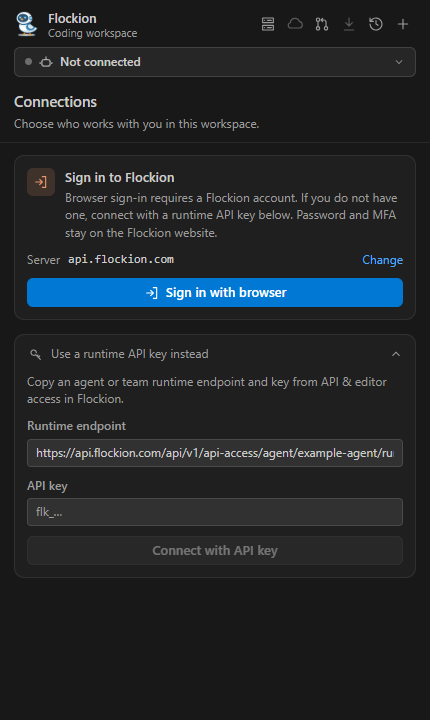
Sign in with your Flockion account
- Open Connections from the agent/team chip at the top of Flockion.
- Set the Cloud server to
https://api.flockion.com/api/v1. - Choose Sign in with browser, compare the displayed approval code, and authorize the editor on the Flockion website. Password and MFA stay in your browser.
- Select an available published agent or team from your account. Its name appears in the connection chip.
Choose an agent or team whose published model, tools and skills match the task. The Flockion ABAP Coding Agent and an ABAP development team are suitable starting points when provisioned for your account. Team members use their published roles and configuration.
Connect with a runtime API key
A developer can connect without a Flockion account when an owner provides a runtime endpoint and scoped key.
- The owner opens the agent or team profile on Flockion and expands API & editor access.
- The owner generates a key with an expiry and daily call limit, then securely shares the runtime endpoint and key. The complete key is shown only once.
- In VS Code, open Connections → Use a runtime API key instead. Paste both values and connect.
- Use the pencil beside a workspace participant to set a readable local name if the server has not supplied it yet.
An agent endpoint has this shape:
https://api.flockion.com/api/v1/api-access/agent/AGENT_ID/runA team endpoint uses /api-access/team/TEAM_ID/run. Keep the asset ID and key together. A key for one asset cannot authorize another.
The runtime key starts with flk_. It is different from an OpenAI, Anthropic or other model-provider key. Runtime execution uses the key owner's capacity and authorization. An owner can configure a saved provider connection and publish a new agent/team version when using their own provider account.
3. Work with your code
Use Ask to inspect and discuss, Plan to prepare a checklist, and Act to implement. Begin with a concrete task and acceptance criteria, for example:
Inspect this project and propose a small change to improve input validation.
List the affected files, keep the public API compatible, and explain how to verify it.
Wait for my review of the plan before implementing.
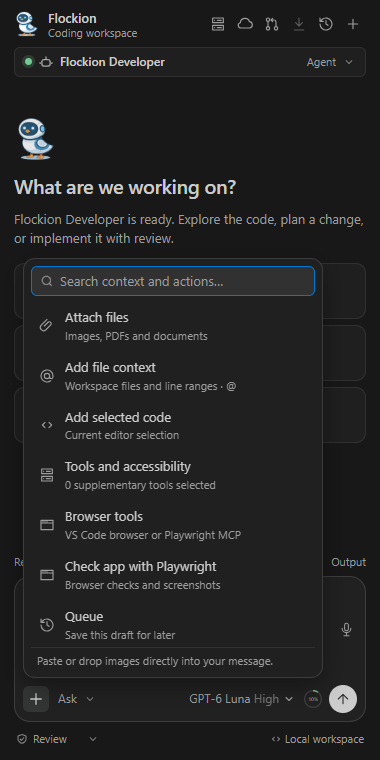
File contents are read on demand by the editor tools. Add specific context with + → Add file context, type @ for file references and line ranges, or add selected editor code. Attach images, PDFs and supported documents with + → Attach files; paste or drop images into the draft for a preview. Remove an attachment chip to exclude it from the message. Up to four files of 5 MB each can be attached per turn. Scanned PDFs need readable text or image input.
Microphone dictation on Windows inserts editable draft text. Review the text before sending.
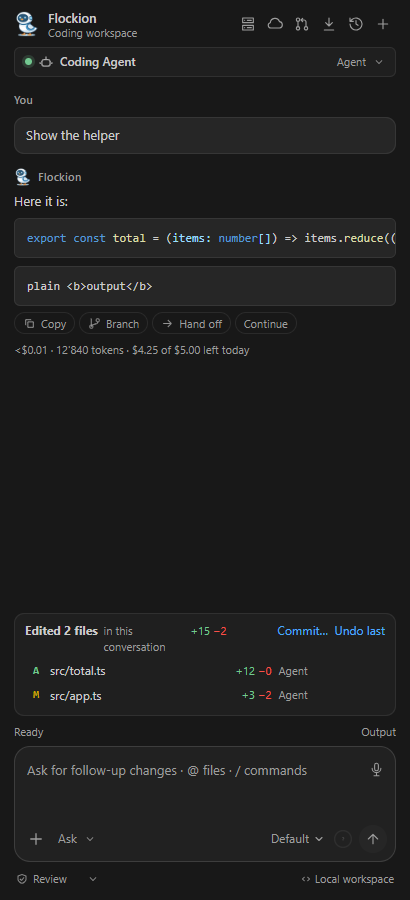
Responses include Copy, Branch, Hand off and Continue actions. Branching starts a chat from the selected answer and its preceding question. Conversation history, drafts and file changes are saved for the workspace; export a conversation when you need a shareable record.
Review changes and restore safely
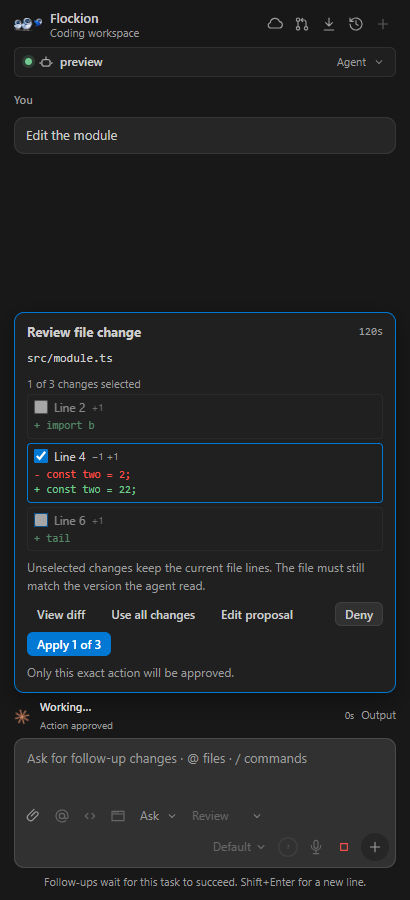
Review asks before local edits and commands. Full access lets Act edits and commands run with your local user permissions. It resets to Review on reload; platform policy and tool-specific approvals still apply. SAP calls and supplementary selected VS Code tools have their own review requirements.
Inspect the proposed diff, edit the proposal, or approve selected hunks. The edited-files summary and task checkpoints help you inspect all captured text changes. Restore checks the current file contents before applying a checkpoint, so later edits can block a restore instead of being silently overwritten.
File checkpoints cover captured source changes. Effects in SAP, remote services, ignored files, binary files and commands outside the workspace need separate review and recovery.
Plans, follow-ups and recovery
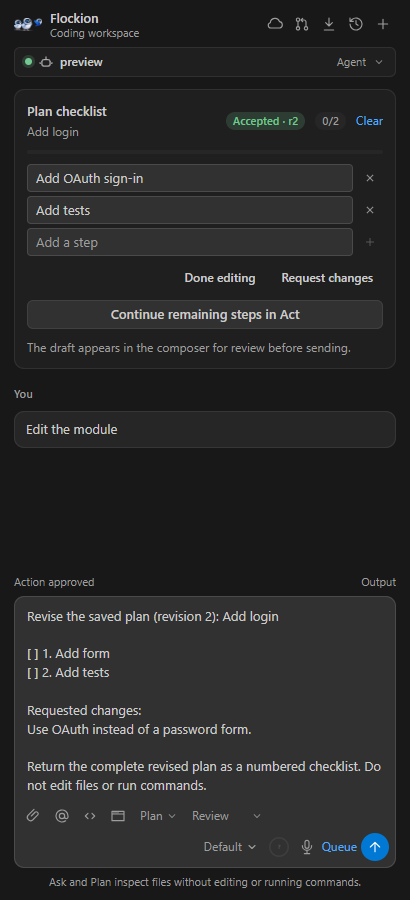
Accept and revise a persistent checklist, then continue its remaining steps in Act. The local queue holds up to five follow-ups, with their own captured inputs; edit, reorder, pause or resume them. A failure pauses the queue for review.
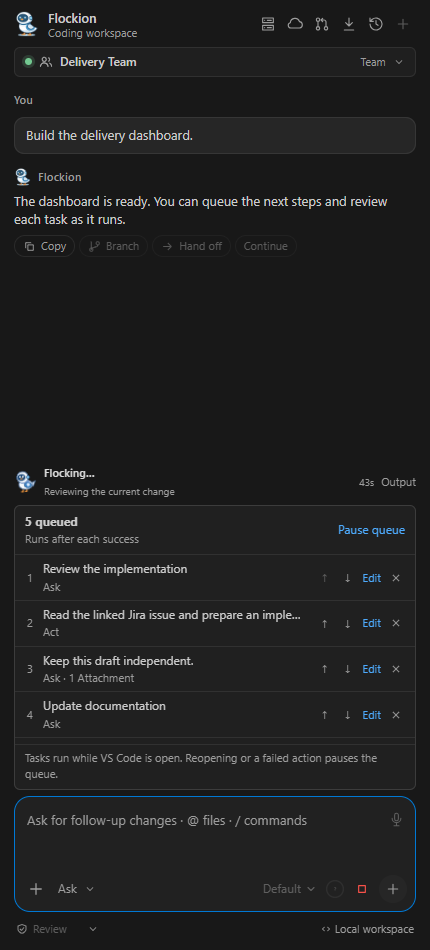
After a connection interruption, use Check previous request status before sending the task again. An uncertain request may still be running. Reopening the editor does not automatically replay an edit, command or SAP operation.
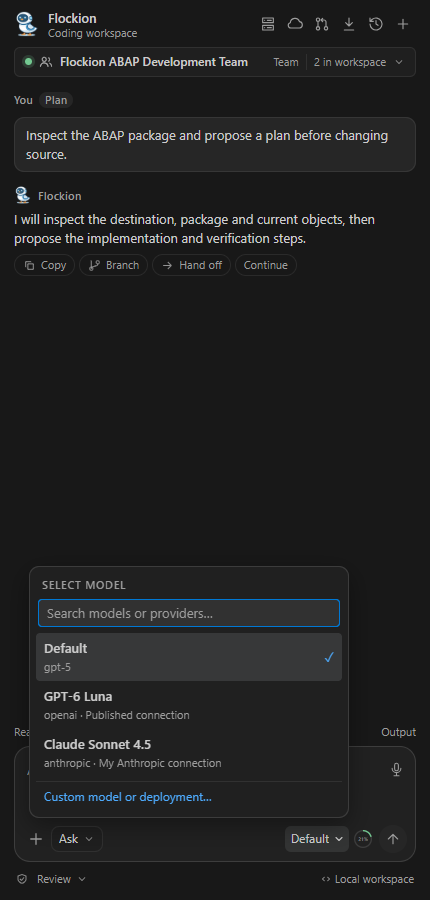
The model control in the composer can override the published model for the chat using provider connections available to the runtime owner. The context ring estimates usage, turns red above 50%, offers manual compaction and triggers automatic compaction at 95% of a known model limit. Compaction has provider usage costs; original history remains available. Unknown model limits cannot produce a reliable percentage.
4. Work with multiple agents and teams
Connect a published team to use its configured specialist members. Their names appear in tool activity. Use Add participants with your signed-in account to keep additional agents or teams in the workspace; manual connections can also be saved for switching.
Choose Hand off on a response to pass the selected question and answer to another saved participant. Review the destination and continue there. The extension records waiting, running, completed and failed handoff states.
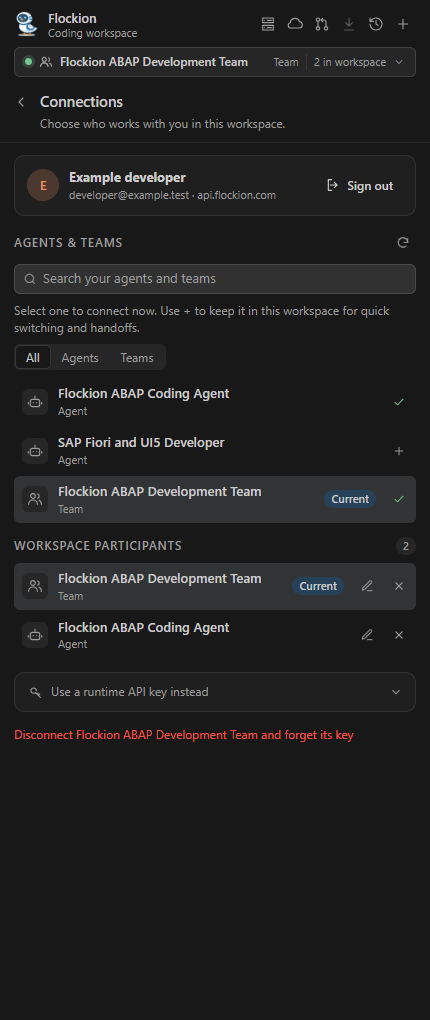
A practical SAP workflow is requirements → ABAP/CDS/RAP implementation → Fiori UI → SAP verification → developer review. Use the roles and tools published in your team. Local mutations share the editor bridge and are serialized. Autonomous cross-team delegation and separate parallel coding workspaces are not part of this editor workflow.
Independent background tasks
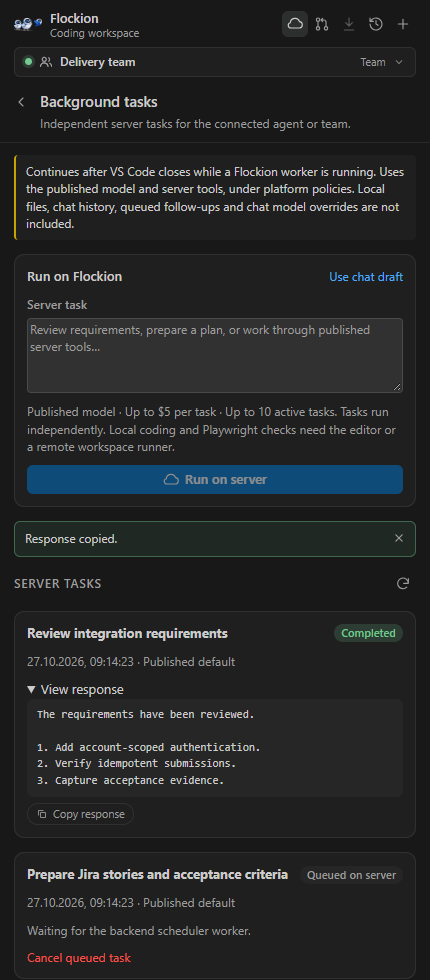
The cloud icon opens Background tasks. Use it for independent requirements, analysis or other work supported by the published server tools. The task can continue after VS Code closes when the Flockion worker is enabled. Inspect saved results and cancel queued tasks from the panel.
These tasks use the published model and server tools. They do not inherit local files, the editor conversation, local SAP/browser connections or the per-chat model override. Use the live editor for coding against your local or SAP workspace.
5. Configure SAP ABAP development
Use an existing authorized development system: SAP BTP ABAP Environment or a compatible ABAP system supported by your SAP ADT installation. Flockion's coding integration is available for development evaluation. SAP labels the ADT MCP server experimental and not intended for productive use; validate it against your intended SAP release and development scope. See SAP's ADT MCP tutorial and official ABAP Development Tools documentation.
Connect a destination
- Install ABAP Development Tools for Visual Studio Code (
sapse.adt-vscode). Connection Manager for SAP Systems is optional when ADT already manages your destination. - Use ABAP: New Destination... when needed, then ABAP: Log On to Destination... and ABAP: Add Destination as Folder to Workspace....
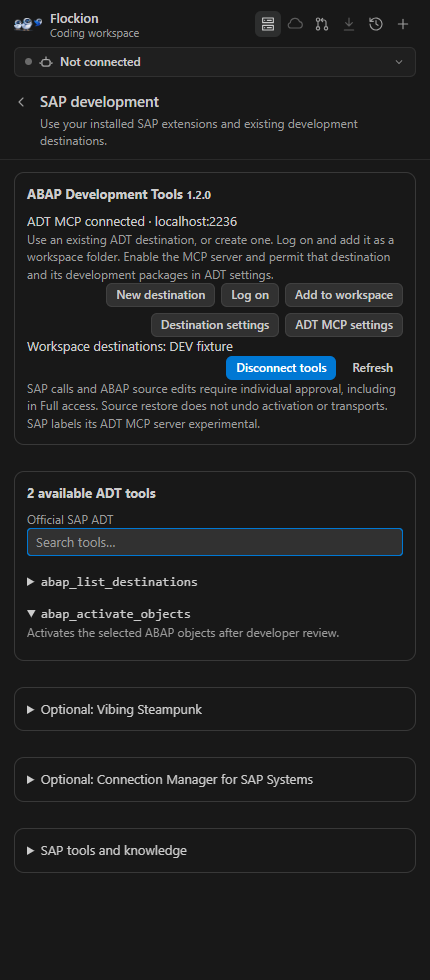
- Open Flockion's SAP development panel. Choose ADT MCP settings and enable
adt.mcpServer.enabled. The default port is2236; use your configured port if it differs. - Keep
adt.mcpServer.accessRestrictionsEnabledenabled. In ADT's access restrictions, allow your actual destination underdestinationsand your permitted development packages underpackages-objectChanges. FinelineDEV is an example name, not a required destination. - With the destination active, choose Connect ADT tools. Flockion lists the tools discovered from the local server. Destination login and the generated ADT bearer token remain local to SAP's VS Code components.
- Connect the ABAP coding agent or development team. Select the ABAP workspace folder for the conversation and begin by inspecting the destination, package, language version and current objects.
Implement and verify ABAP changes
Inspect the connected SAP development destination and the permitted package.
Discover the available ADT tools and read the exact schemas before calling them.
Read the current object source and propose a small change with acceptance criteria.
After I approve the plan, implement it, activate the changed objects,
run the applicable ABAP Unit and ATC checks, and report actual results and IDs.
Ask before transport release or import.
The engineering-abap skill supplies SAP-specific development instructions when published on the selected agent/team. It supplements the model and connected tool schemas; it does not grant SAP access.
SAP tool calls require approval even with local Full access. Run once approves a call. Allow for session permits later calls to that tool until SAP disconnects or VS Code reloads; Ask again for every call revokes that session allowance. In Ask or Plan, approve only calls you have checked are read-only. SAP authorizations, object locks and destination restrictions apply throughout.
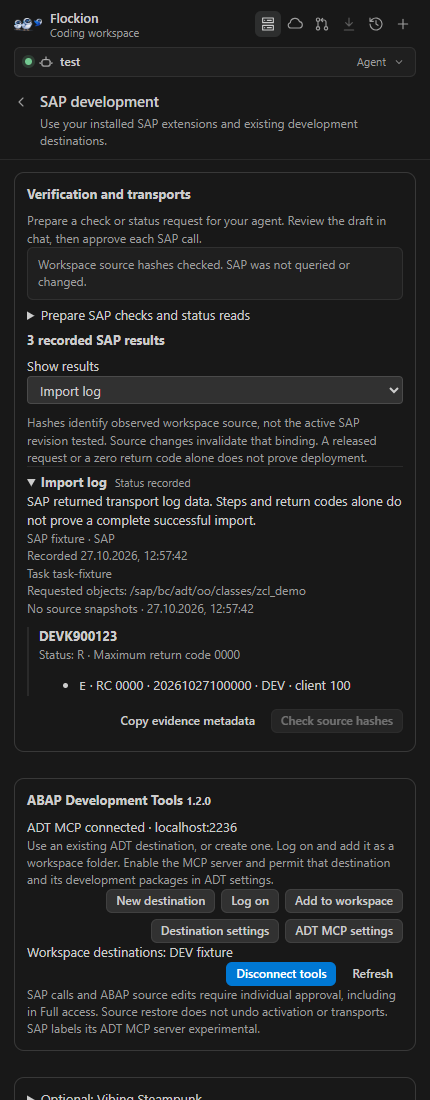
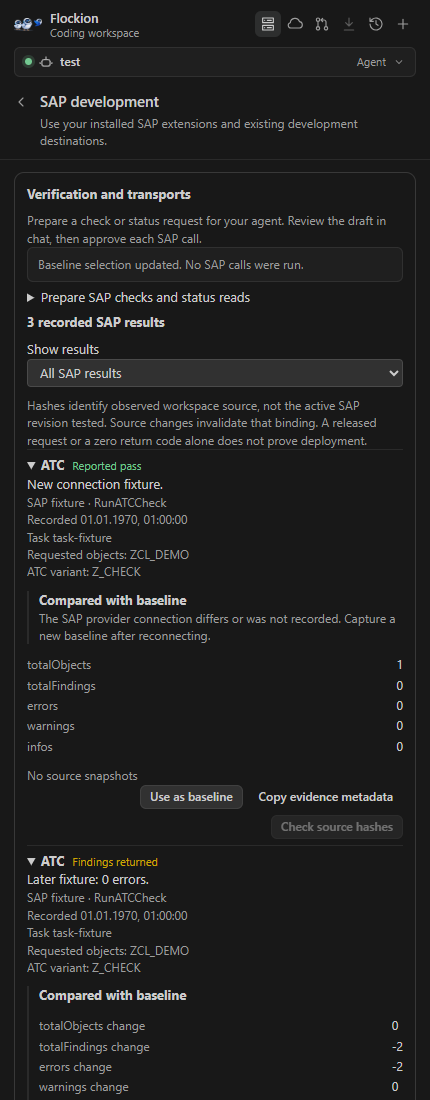
Source edits do not imply activation. Check activation, ABAP Unit, ATC and transport results separately. Recorded object IDs, findings, counts and source hashes help you review evidence; a released transport, a zero return code or a local source snapshot alone does not prove a successful deployment.
6. Configure Jira and review delivery
Jira actions use the Atlassian tools published on the connected agent/team. Set up that connection on Flockion first; saving an issue link in VS Code does not supply Jira authorization.
- In Flockion, open Capabilities → MCP Servers → Add a remote MCP server. Use
https://mcp.atlassian.com/v2/mcp?tools=allfor explicit tool discovery and assignment. - For a personal Atlassian API token, choose Basic (username + password/token), use your Atlassian email and enter the token in the secret field. Your organization must enable API-token authentication. Select the required Jira
agent-interfaceread, write and search scopes. A service-account API key uses Bearer token. Follow Atlassian's authentication guide. - Choose Test & discover, review the tool manifest, assign the required read/create/comment tools to the actual agent or team member, and publish the updated version. Permissions and available tools depend on the Atlassian account and site.
- In VS Code, open Delivery, link an issue key or URL, and start with Draft requirements task. Review the Act draft and send it.
- Use Prepare implementation update to draft a comment from captured changes and tool outcomes. Edit the text before running the comment task. You can also draft a Story, Task or Bug.
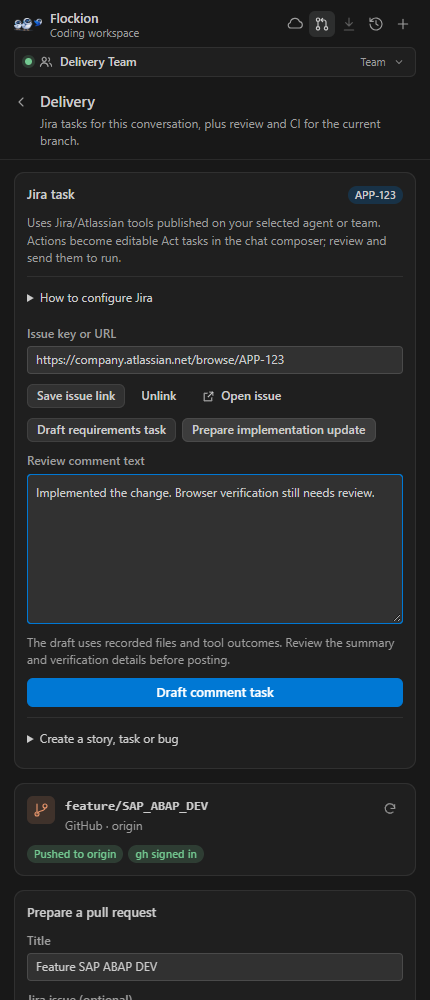
Delivery also inspects the current Git branch, existing PR/MR and CI checks using your installed, signed-in gh or glab CLI. Prepare a PR/MR for an already-pushed branch, review the form, and submit through the provider workflow. Merging, deployments, automatic Jira status synchronization and Jira screenshot attachment publishing require separate workflows; the editor does not perform them automatically.
7. Select MCP and VS Code tools
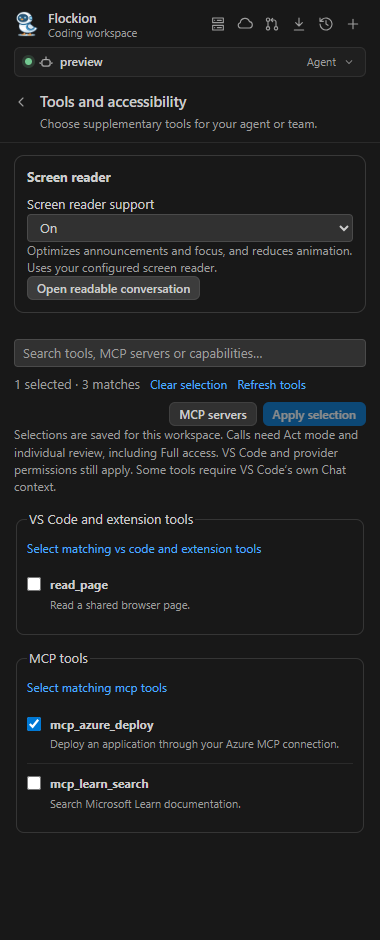
Open + → Tools and accessibility to search registered public VS Code, extension and MCP tools. Select individual tools or a group, then Apply selection. The selection is saved for the workspace. The runtime discovers the selected catalog and exact input schemas before use.
Selected supplementary tools require Act mode and individual review, including Full access. Native confirmations and provider policies also apply. Some tools require VS Code's own Chat context and cannot be invoked from Flockion; an installed MCP server does not guarantee every tool is compatible. Configure server authentication in its owning extension or provider connection.
Screen reader support offers Auto, On and Off. Auto follows VS Code's screen reader detection. Optimized mode provides polite updates, reduced motion and stable reading focus. Open readable conversation opens a read-only transcript in the native editor.
8. Use the browser and Playwright
- Open + → Browser tools and enter your application's HTTP or HTTPS URL.
- Choose Open in VS Code. In the integrated browser toolbar, use Share with Agent and approve the page sharing.
- In Flockion choose Use VS Code browser, then Add browser task to chat. Use Act mode for interactions and review the requested actions.
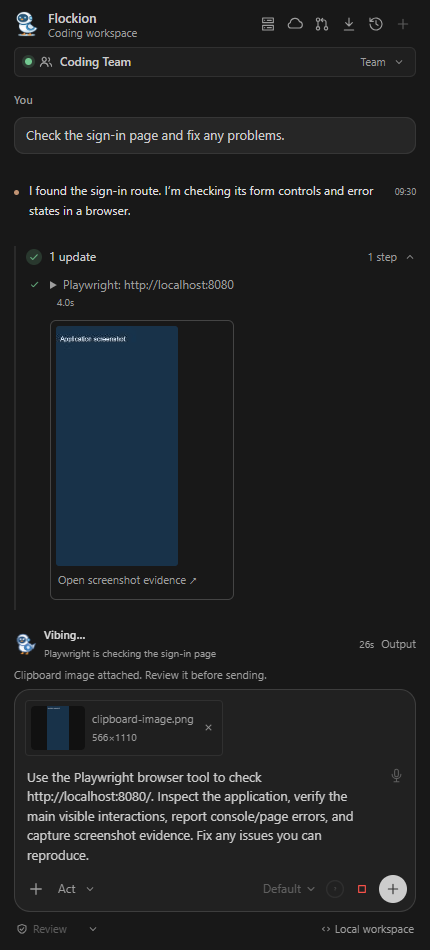
- Ask the agent to inspect the page, exercise the target interaction and capture screenshot evidence. Browser tools are discovered through the public VS Code tool API when available in your installed version.
Alternatively connect tools exposed by a running Playwright MCP server. That server uses its own browser session unless you configured it to attach elsewhere. Choose the integrated provider when you intend to use the visible shared VS Code browser tab.
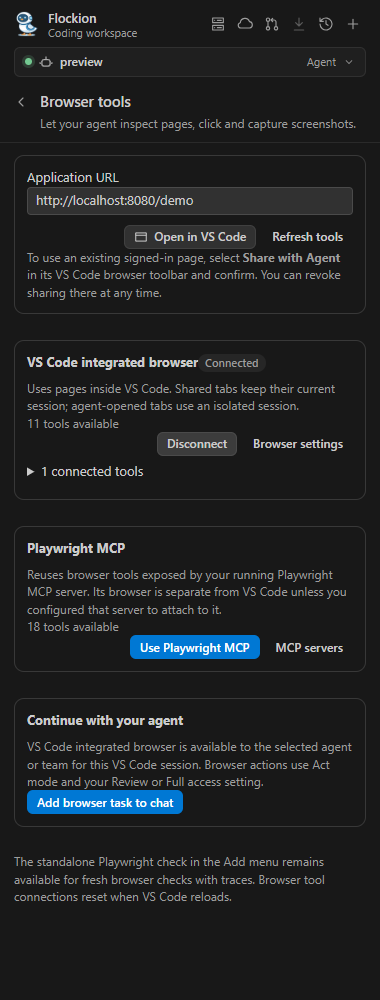
The standalone + → Check app with Playwright action checks a URL in a fresh browser context. It captures step results, page/console/network errors, screenshots and a trace. It does not reuse your signed-in browser session. Screenshot evidence can be opened from tool activity and uploaded to the current Flockion conversation.
Troubleshooting
- Cannot connect / HTML instead of JSON: Cloud connections use
https://api.flockion.com/api/v1.https://flockion.comis the website, rather than the editor API. Keep the complete agent/team runtime endpoint ending in/run. - Runtime admission denied: check the runtime key owner's account capacity, key expiry, daily limit and provider connection. A key does not bypass organization policy or billing.
- The chip shows an ID or generic name: refresh the connection against the current backend, or use the participant pencil to set a local display name.
- Tool or model controls are unavailable: use a current extension and matching Flockion backend; republish agent/team configuration after changing tools, skills or provider credentials.
- SAP tools are missing or denied: activate and log on to the intended ADT destination, check the server port and scoped destination/package restrictions, then reconnect. Installing ADT alone does not create a SAP system or development authorization.
- A request disconnected: inspect its saved status and the external system before retrying an uncertain operation.
- A selected native tool rejects the call: it may require VS Code Chat context. Use a compatible public tool or the dedicated SAP/browser provider.
- Jira returns 401/403: verify the Basic/Bearer mechanism, admin enablement, token scopes, site/project access and published tool assignment.
For agent and team configuration, continue with Agents, Teams, and Tools & Skills.